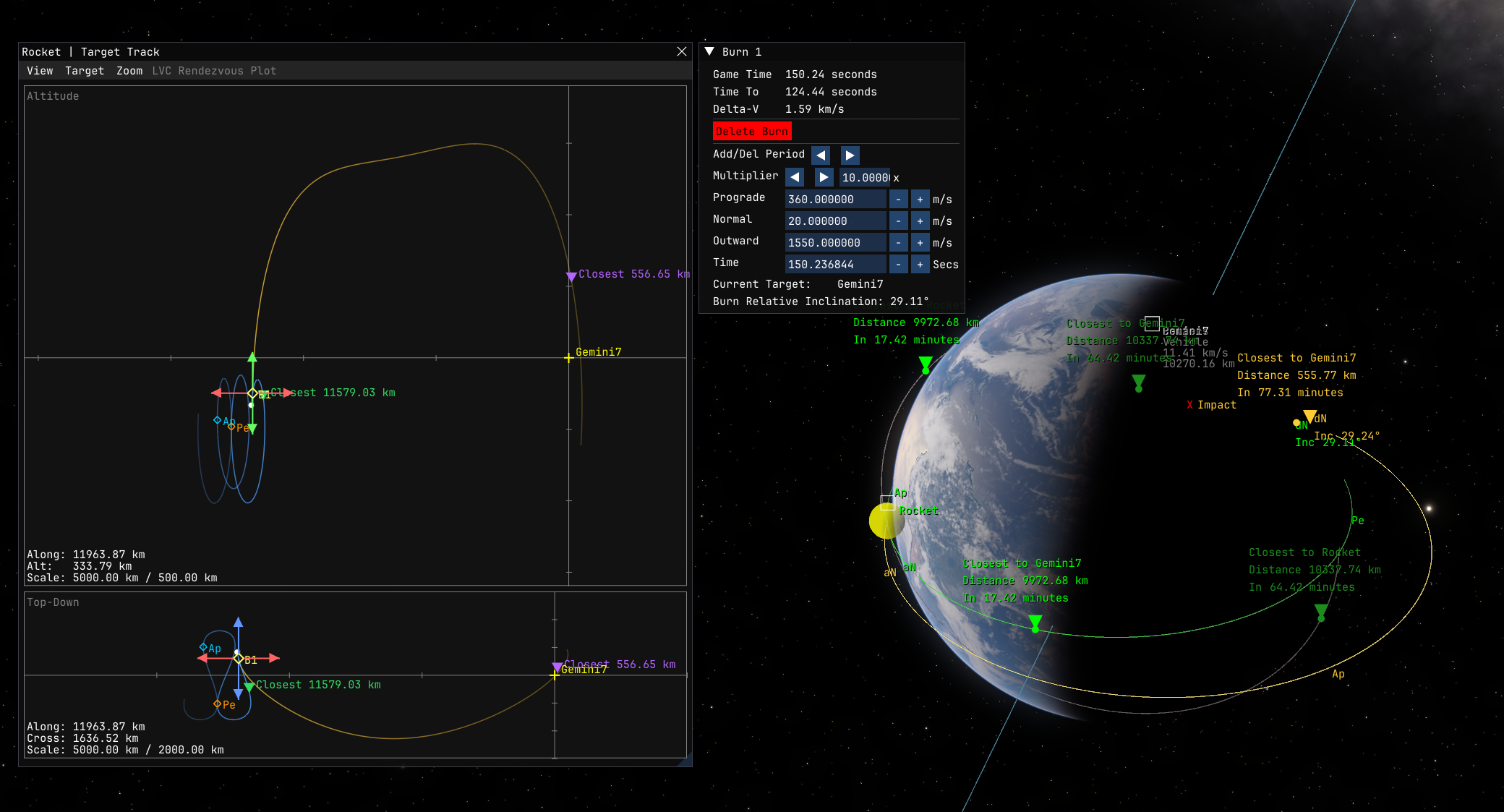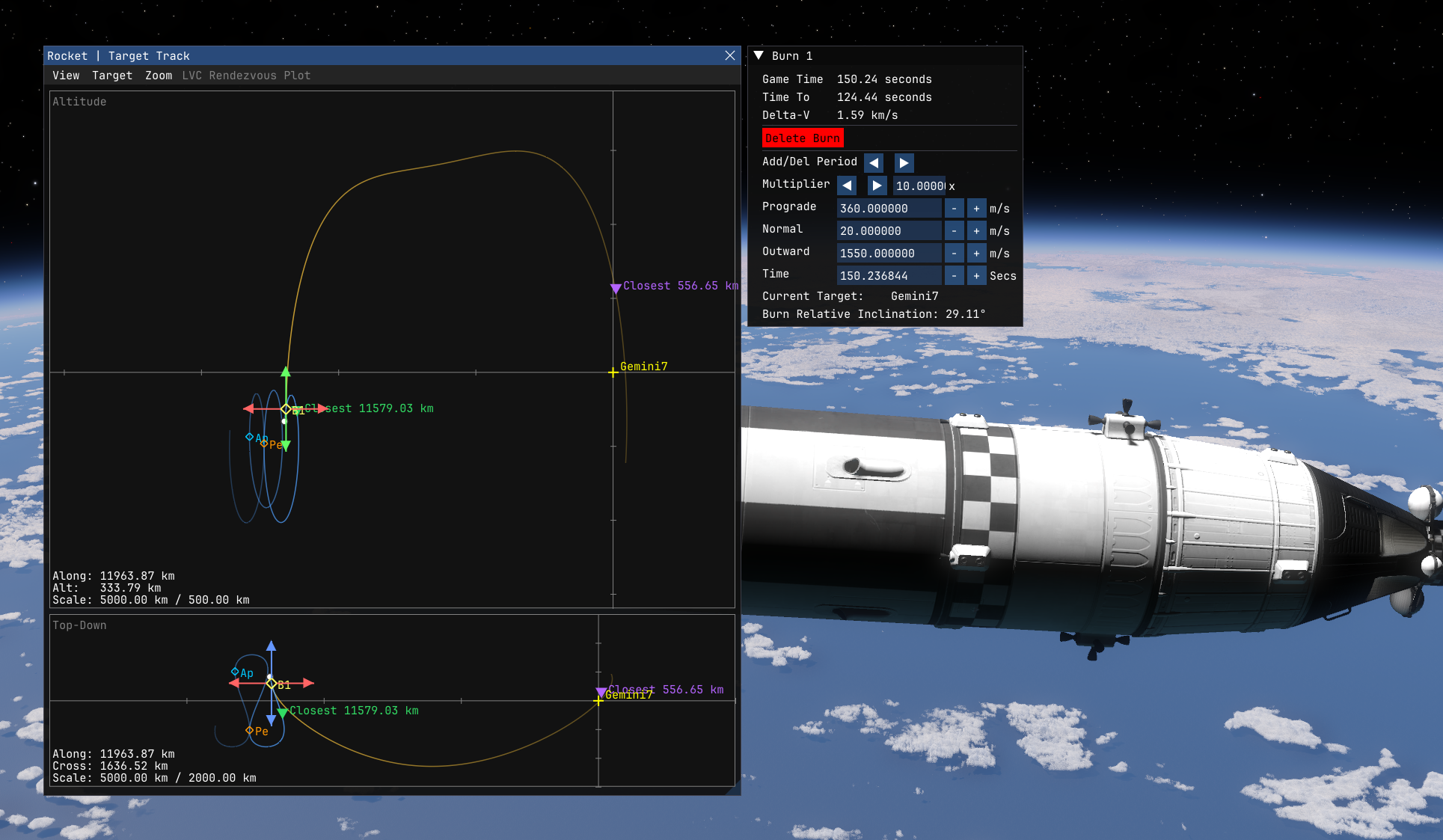
There is now a target tracking Window UI available in the game, accessed via the menu (hotkey F12 - you can remap this of course in the game settings).
The LVC Rendezvous Plot is a purpose-built window for planning orbital rendezvous maneuvers.
It shows your vehicle's trajectory relative to a target in Local Vertical/Local Horizontal (LVLH) space — a reference frame centred on the target, where "up" is always radially outward and "forward" is always along the target's velocity direction. This makes it much easier to visualise how a rendezvous will play out than looking at raw orbital paths.
This window allows you to:
Set/unset the Target Vehicle for the currently controlled Vehicle.
See the controlled Vehicle's Orbit (And Burn flightplans) relative to the Target in the Local-Vertical Lopcal-Horizontal (LVLH) frame of reference.
Create/Delete and edit Burns for your controlled Vehicle in order to achieve a rendezvous with it's target.
How to Read the Window
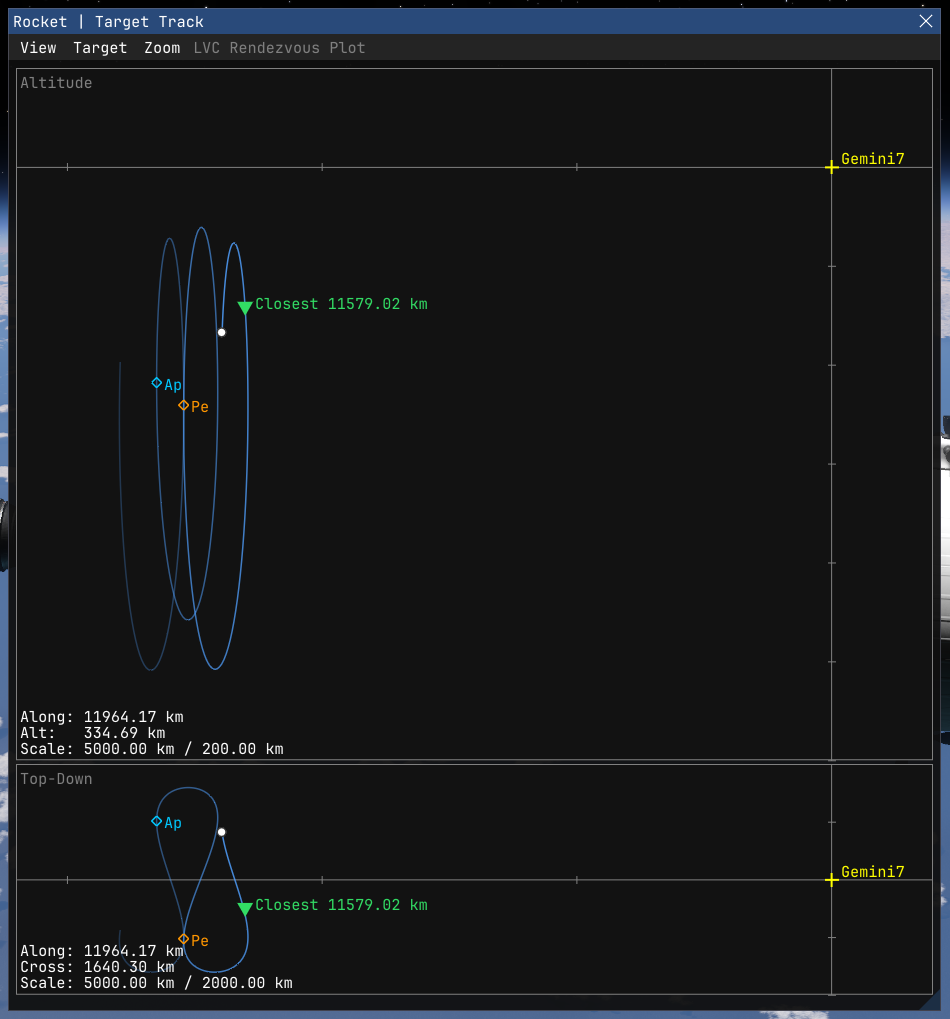
The window is divided into two panels:
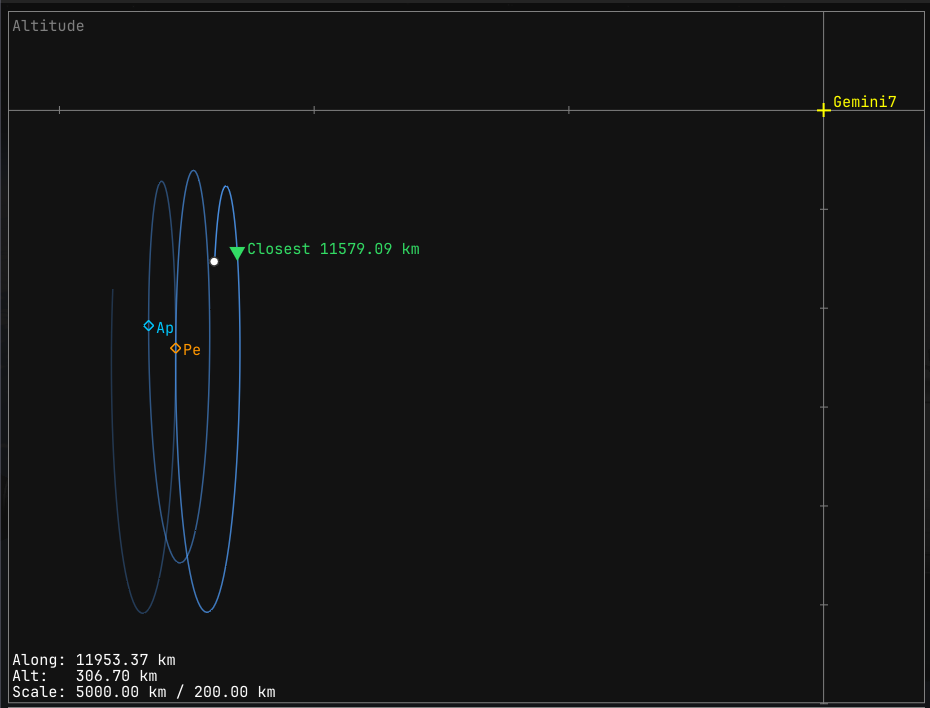
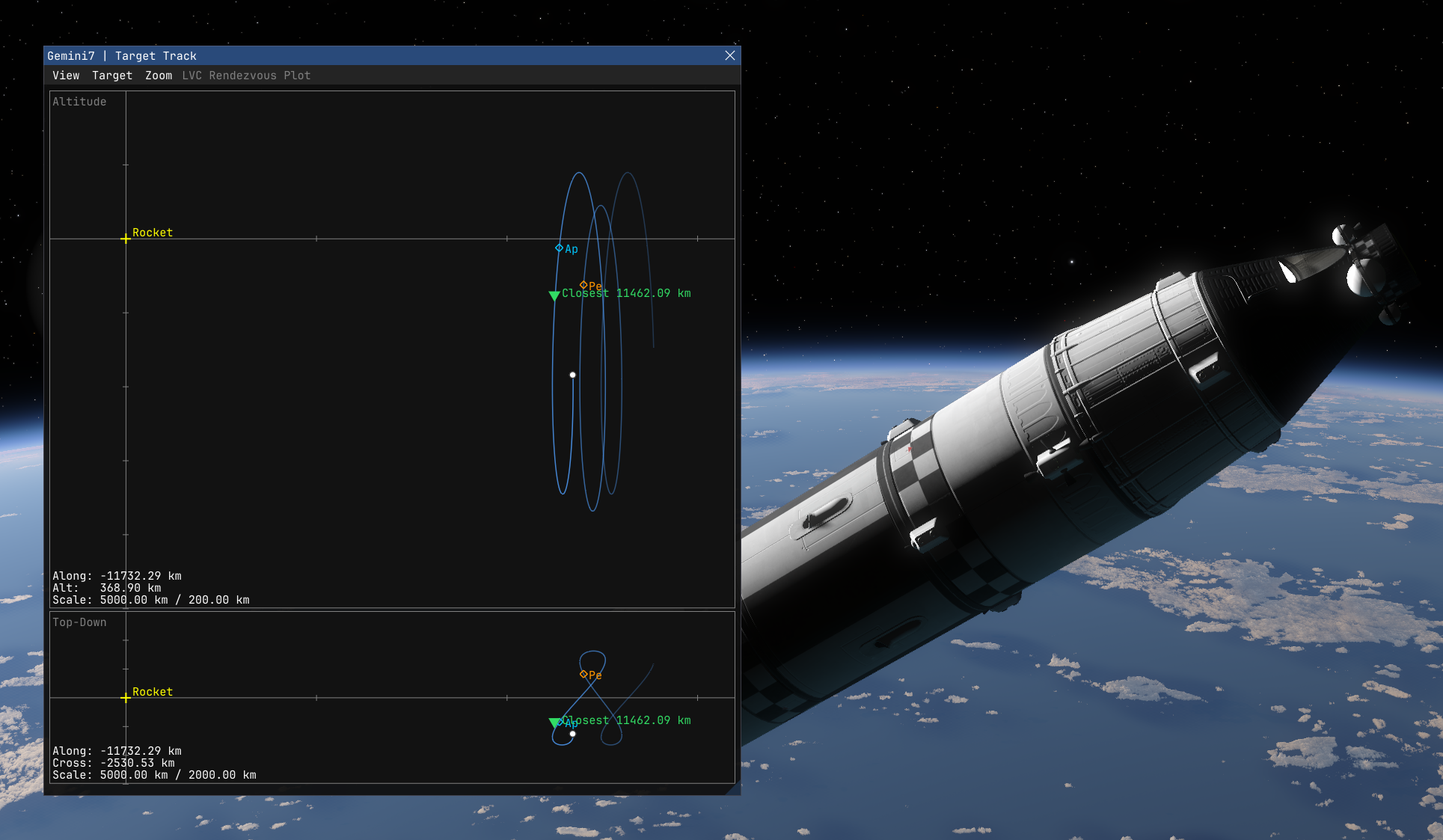
Altitude (top panel) — a side-on view showing your along-track position (horizontal) versus your altitude offset from the target (vertical). This tells you whether you're above or below the target and how far ahead or behind you are.
Top-Down (bottom panel) — an overhead view showing your along-track position versus your cross-track offset. This tells you whether you're drifting to the side of the target's orbital plane.
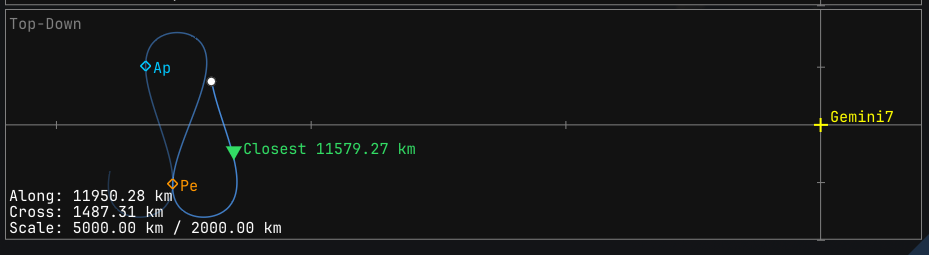
In both panels the target sits at the crosshair at the origin. Your current position is shown as a white dot, and your projected trajectory over the next orbital period is drawn as a blue line that fades from bright (now) to dim (end of the window). Apoapsis and periapsis markers are shown as small diamonds if they fall within the plot window.
A green triangle marks the point of closest approach along your current trajectory, with its distance labelled. If you have a burn plan active, a purple triangle marks the closest approach after the burns are applied.
At the bottom-left of each panel you'll find live readouts of your current along-track, altitude, and cross-track offsets, plus the current grid scale so you always know the distances you're looking at.
How to Use the Window
In order to rendezvous with the target we just have to adjust our orbit so that our orbit line (or a burn orbit line) intersects the target yellow cross.
Navigating the plot
- Use your Mouse wheel to zoom in or out on the hovered panel.
- Right click and drag will pan the view.
- Middle-click will reset zoom and pan back to the default fit.
You can also adjust the zoom and the time window from the Zoom menu.
The period multiplier controls how far into the future the trajectory is projected — 1× shows one full orbital period, 1.5× (the default) shows a bit beyond, which is useful for catching close approaches that occur just past one orbit.
Planning burns
Any burns you create in the mapview will appear in the target tracking window and vice-versa.
To create them in the target tracking window, hover over either panel and right-click on any point along the trajectory to bring up a context menu showing the time-to that point. Select Add Burn Here to create a new burn at that position.
Active burns appear as orange diamond markers labelled B1, B2, etc. Left-click a marker to select it. A burn editor panel will appear alongside the window where you can set the exact delta-v values, timing, and other parameters.
Once a burn is selected, a dV gizmo appears at its marker — four arrows pointing in the prograde, retrograde, radial, and normal directions. Drag any arrow to interactively adjust that component of the burn's delta-v. The trajectory and closest approach markers update in real time as you drag.
To change the time of a burn, left-drag its marker along the trajectory to a new position. The burn's scheduled time will update to match wherever you drop it.
Left-click empty space to deselect the current burn. Up to four burns can be displayed simultaneously in the target tracking window.